Tag Archives: image

Yet Another Reason to Like Live View – Shooting in the Wind

I have posted in the past about some of the advantages of having a live view feature on your camera, especially for the types of photography that I do using my Canon 5DII. This past week I discovered another use, and an unexpected one at that – shooting in conditions of gusty winds.

I most often work from the tripod, and I usually use a pretty large and stable tripod in the context of shooting a full frame DSLR camera. But in some very windy conditions putting the camera on a tripod is not sufficient to stop camera motion and the consequent blur. This is especially a problem when you are shooting in low light or otherwise need to use very long exposure times, and it becomes worse when using long lenses which will catch more wind and magnify vibrations. There are a bunch of tricks that you can try in order to keep the camera steady, but in really strong winds the camera is just going to move, especially if you have a very large lens attached.

One way I try to deal with this is to time my exposures for moments when the wind may momentarily decrease. This can require a lot of patience – sometimes I’ve had to wait several minutes for a very brief halt to the gale, during which I try to make my exposure. But even in this case, you have to make sure that the camera vibration stops completely if you are using a long lens. Ultimately, you have to simply trust that the camera really has stabilized since there is no way to tell directly. Last week, as I was using live view to focus a 400mm lens on a distant subject and again noting that 400mm plus 10x software zoom in live view makes the camera very sensitive to vibration. In the past I have noted this mainly in the context of how darn hard it is to manually focus a big lens this way! But this time it occurred to me that I could use this in my favor.

With the 10x live view magnification enabled, the display is very sensitive to camera motion from the wind. I realized that by leaving the camera in the 10x magnification setup after composing the shot that I could simply watch this display, with its magnification of motion, and wait until the image stabilized during lulls in the wind to take my shots. If the display isn’t bouncing at 10x, motion blur is not going to be an issue. Problem solved. More or less.

G Dan Mitchell Photography
FlickrTwitter (follow me) | Facebook (“Like” my page) | LinkedInEmail

Text, photographs, and other media are © Copyright G Dan Mitchell (or others when indicated) and are not in the public domain and may not be used on websites, blogs, or in other media without advance permission from G Dan Mitchell.


Reader question: How to add borders to online photographs

From time to time people ask what techniques I use to create the simple frames for versions of my photographs that I post online. A while ago I wrote about this: Creating Frames for Online Photos: My Method. The explanation involves the use of Photoshop CS3, but the technique is essentially the same in the current version of the program.

You can read the details at the link above, but the process is basically fairly straightforward. I use Image –> Canvas size to add a series of borders to the original image: a one-pixel gray border immediately around it, a larger white border beyond that with a bit more width at the bottom, and finally a one-pixel black border at the outer edge. I turn this into an action that I can apply by selecting it and clicking a button to run it.

The approach to creating the text incorporated into the web images is similar, though it requires a bit of tweaking with each photograph. Essentially, I create three text layers: one for the large type at the bottom, one for the small embedded copyright notice, and a slightly larger “watermark” that will go over the image itself. The action I recorded creates the three layers and inserts the boilerplate text, but I always have to do a bit of alignment manually, and I may also have to make some decisions about opacity and so on depending upon the characteristics of the individual image. Still, it takes less than a minute to do the whole thing even in the wost cases.

Why apply a border, “branding” text, and copyright to the photographs?

  • If people like your photograph, it makes sense to make it easy for them to find you – so I include the easily readable text with my name and web site URL. No matter where the unaltered file ends up, viewers will be able to find the source.
  • The use of consistent presentation helps to establish the photographer’s “brand.” This is true even when the image is displayed in ways that are out of your control, including search engine results.
  • Inclusion of the copyright information is a formality to remind viewers that use of my photographs requires advance permission.
  • Although the inclusion of a watermark cannot stop a dedicated image thief, I think it reduces the likelihood of misappropriation – and that is probably about all that one can really hope for on the basis of a watermark. It may tweak the conscience of the typical user, who may perhaps simply not have thought about the issues of legal usage, and it may encourage others to look for a different image that won’t expose their illegal use and/or require them to take the intentional step of trying to remove the text to cover up the source.
I also addressed these issues in a separate post at this blog.
(Occasionally a person interested in purchasing a print or licensing a photograph for some other use wonders if the embedded watermarks, copyright information, and branded borders are part of the original images. No. When you purchase a print there is nothing on the paper but the photograph itself and my signature. Photos licensed for other uses – books, magazines, web site, etc – are normally provided without added text.)
Articles in the “reader questions” series:

G Dan Mitchell is a California photographer and visual opportunist. His book, “California’s Fall Color: A Photographer’s Guide to Autumn in the Sierra” is available from Heyday Books and Amazon.
Blog | About | Flickr | Twitter | FacebookGoogle+ | 500px.com | LinkedIn | Email


All media © Copyright G Dan Mitchell and others as indicated. Any use requires advance permission from G Dan Mitchell.

Canon EOS 5D II: Early Observations on Image Quality

I posted earlier today about increasing availability of the Canon EOS 5D II at places like B&H, so I thought it might be useful to begin posting on some of my experiences with the camera during the couple of weeks (and perhaps a thousand frames) that I’ve had it. Here is a copy of something I posted elsewhere earlier this week, in response to a post concerning image quality from this camera:

I’ve shot with cropped sensor bodies extensively in the past. I have shot with a full-frame 5D for the past two years. I recently began shooting with a 5DII and have done a thousand or so frames with it.

I cannot see image quality problems in my images, even in those that stress the ability of the camera in ways that should produce them if they are there: shooting wide dynamic range scenes, using high ISOs (up to 1600), inspecting at large on-screen magnifications, and making careful prints.

My photos have very low noise all the way through the shadows to pure black, even in some photographs where I’ve pushed the shadows either during RAW conversion and/or via the shadow/highlight tool in post. I’m seeing very highly detailed images with smooth tonal transitions. As far as I’ve seen the 5D II has a rather substantial dynamic range – as reported in a number of tests – and it is at least as great as that of the 5D.

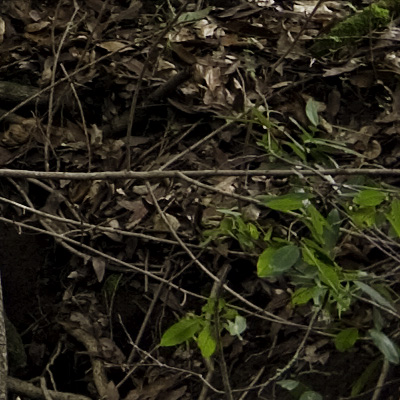
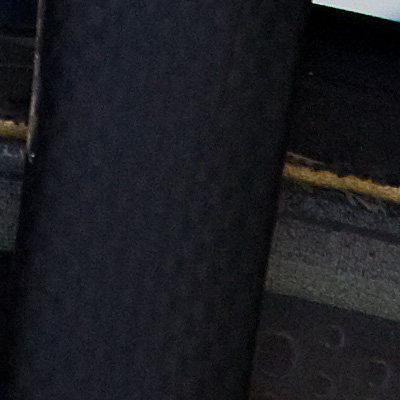
Let me repost a couple of 100% magnification crops that I posted elsewhere from the 5DII.

The first was shot at ISO 100 at, IIRC, f/16 using a 35mm prime with the camera on tripod. The crop is a 100% magnification section from the very far lower right corner of the shot. The dark areas were pushed slightly, too, so if there were noise anywhere it would certainly appear here – but I don’t see it even at this resolution, which would be equivalent to a print width of five or six FEET wide. Seems like pretty good resolution to me! (It also speaks well for the EF 35mm f/2 lens.)

The second example is pretty much a noise “torture test” – it is a very dark section of a much larger image. (Again a 100% crop). It was shot using a 100-400mm zoom handheld at ISO 400 in cloudy conditions. There is some noise in the shot, but that is entirely normal – and this noise would be completely invisible even in a very large print. (The pattern on the lighter fabric near the left side of the frame is that of the fabric itself.)

My observations from 100% on-screen pixel peeping are confirmed by the more important test of printing.


(If my post has helped you with a purchase decision, making your purchase from B&H through this link will help support the blog. Thanks!

A Test: Correcting Perspective in Post-Processing

Earlier today I saw a post in which the author stated that correcting for perspective in post-processing would lead to serious problems:

There is quite a bit of loss in image definition if you do a significant amount of correction for converging verticals in an image editor. You can get far better results with a view camera or a tilt/shift lens. If you only photograph for the web, then maybe the image editor approach is ok, but for reasonably large prints?

While that point of view is widely held and often repeated, in my experience a blanket statement like this is not totally correct – it may come down to the definition of “significant.” I find that in many cases the degradation of the image is so small as to be insignificant or even invisible at 100% magnification, and it is most often completely invisible even in fairly good size prints. (This is not to suggest that those making severe corrections, in architectural photography for example, would not be better served by using a tilt/shift DSLR lens or a MF or LF system.)

Rather than just accepting statements like this, I like to test them. In the past I’ve tested and written about the option of correcting for lens distortions in post- processing: A Test: Correcting Lens Distortion in Post Processing. Here I want to extend this concept to using post-processing techniques for the correction of perspective distortion and for leveling the image.

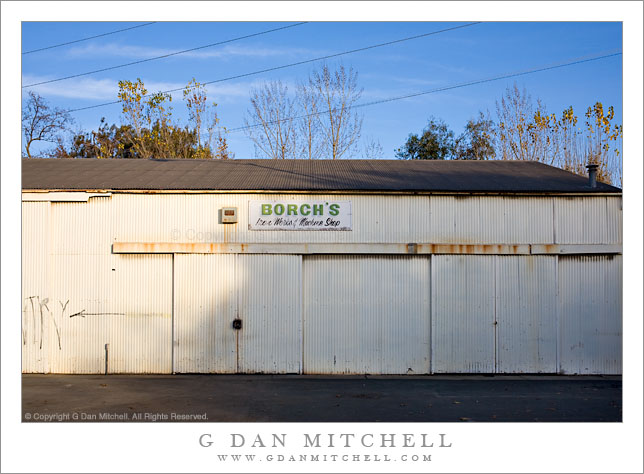
The photograph I’ll use was shot handheld using a full-frame Canon 5D with the EF 35mm f/2 lens, one of my favorites for street photography. First a small version of the final photograph:


Borch’s Iron Works and Machine Shop – old metal shop building in the downtown area of San Jose, California. © Copyright G Dan Mitchell – all rights reserved.

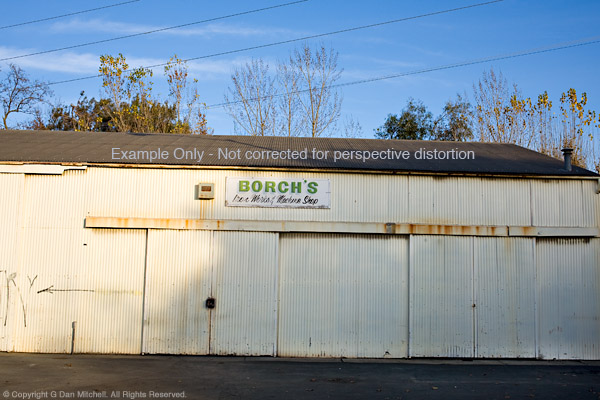
Next is the same image with the same post-processing, except that the corrections to horizontal alignment and perspective have been left out:


Borch’s Iron Works and Machine Shop – old metal shop building in the downtown area of San Jose, California. Uncorrected version. © Copyright G Dan Mitchell – all rights reserved.

Yup, that’s what happens when you shoot street and shoot handheld. ;-)

In this example we can clearly see several problems that need fixing. First, the image is not level – it tilts down to the right. Second, the vertical lines begin to converge toward the top of the image. Third, since the camera’s sensor was not perfectly parallel to the building wall, the right side of the building recedes and gets smaller as the horizontal lines become closer together toward the right edge.

In my view, the uncorrected version of this photograph is not usable. On the other hand, I’m not likely to start doing street photography with a tripod and a tilt shift lens any time soon! Correction in post seems to be a reasonable option. (And, to cut to the chase, the corrected version seen above really does make a nice print.)

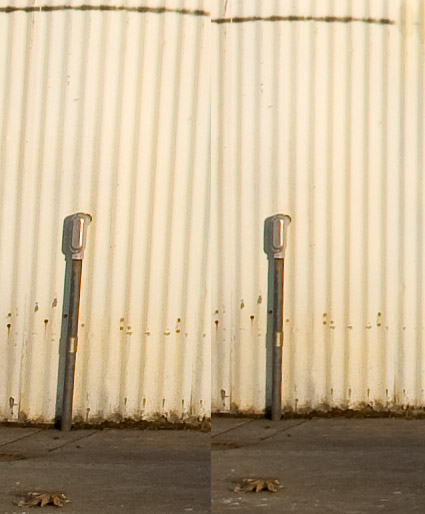
The next image includes two versions of roughly the same section of the photograph at 100% magnification. The crops come from the lower left area of the full image and include the conduit on the wall in the area in full sun. I could have used a section from all the way in the corner, but given the low contrast in that area the difference between the samples would be even harder to see – so I’ll stick with the section where the conduit provides a more visible contrast and frame of reference. Depending on your monitor, this resolution is equivalent to looking at a small section from a print that would be perhaps 50″ or 60″ wide. (Hint: that would be a very big print for a DSLR original – significantly larger than almost anyone ever produces! Made many 60″ x 40″ prints recently?)


100% magnification from lower left area of ‘Borch’s Iron Works and Machine Shop’ – two versions. © Copyright G Dan Mitchell – all rights reserved.

I believe that if you know what to look for and you  inspect this 100% crop very closely you can detect a small difference in the “sharpness” of the two photographs – but it is quite subtle even when viewed at 100%. In practical terms, however, this tiny effect that is just barely visible under close inspection at 100% in side-by-side comparisons on the screen is entirely insignificant in a print. Even with a very close inspection it would be quite invisible in a print of, say, 18″ x 24″ and probably even larger. Bottom line: Both would produce very sharp prints at very large sizes and essentially no one would comment that one is sharper than the other… though quite a few might notice that the corrected image looks a whole lot less distorted in the spatial sense.

Note: Article text edited/updated for clarity on 4/27/13.

This reinforces my belief that any degradation to the image quality that occurs when lens distortion, perspective, and/or horizontal level are corrected carefully during the post-processing stage can be very minimal and in the majority of situations will be invisible in prints.


G Dan Mitchell is a California photographer and visual opportunist. His book, “California’s Fall Color: A Photographer’s Guide to Autumn in the Sierra” is available from Heyday Books and Amazon.

Blog | About | Flickr | FacebookEmail

Links to Articles, Sales and Licensing, my Sierra Nevada Fall Color book, Contact Information.


All media © Copyright G Dan Mitchell and others as indicated. Any use requires advance permission from G Dan Mitchell.